“Is this email automated?”
I onboarded a new client for a Systems Build this week. Once of the first things we do is walk through their existing process – and I ask this question a lot: Is this email automated?
That prompted the idea for this article.
Most established small businesses and solopreneurs need fewer bitty admin tasks on their list.
Repeated emails and inbox decisions are an easy win.
If you spend way too much time in admin tasks, your inbox – and sent folder – is a smart place to look first.
This will help you work out which emails can be automated, which should stay personal, and when a template is the better option.
START HERE: emails you send more than once
If you’ve written the same email more than once, it’s a candidate for an automation or template.
This doesn’t mean every repeated email needs a full system – there’s nuance where emails need specific timing, context, or just a bit more care.
But repetition is the clue. If the shape of the email stays the same, there’s usually a better way to handle it.
The repeat points often show up in the same places: Enquiries, Bookings, Onboarding, Payments, and Project wrap-up.
Those touchpoints happen again and again, so if you’re writing these emails manually, it’ll quietly eat your time and energy.
Here’s a quick guide. If it’s:
- Triggered by a clear action → Automate it
- Mostly the same, with small edits → Template it
- Sensitive, high-stakes, or complex → Write it manually
Let’s dig into it.
where are you repeating yourself?
Start with your customer journey and your sent folder. One will help you think about the process chronologically. The other shows what’s actually happening in your inbox!
Look for moments that trigger the same response every time. Common ones are:
- Form submission
- Booked call
- Signed contract
- Paid invoice
- Project ending
If the action is clear and the reply is the same for everyone, automate it.
automation or saved template?
Sometimes there are elements that need the personal touch. That doesn’t mean the email needs to be written from scratch each time:
- A booked call confirmation should send on its own (automation).
- A proposal follow-up might still need your voice, but the majority of it can live in a saved template in your Gmail folder. That will still save more time than you realise!
So as you look at your emails, keep both options in mind. Some belong in your systems. Others belong in your gmail template library.
THE emails I would automate first
Start with the emails tied to actions, timing, and repeat admin. They’ll give you the fastest payoff.
Meeting confirmations and reminders
If you’re still emailing people back and forth to book calls, fix that first.
Tools like TidyCal (affiliate link – this is my usual recommendation for clients – it’s a one off lifetime fee!) or Calendly handle this well. They send booking confirmations, add calendar details, and send reminders before the meeting (e.g., 24 hours before, and 1 hour before).
Instant replies after a form, enquiry, or application
When someone fills out a contact form, enquiry form, waitlist form, or application, don’t let them wonder if it worked. An instant reply can confirm it landed and tell them next steps.
My favourite way to do this (handle forms + the automations) is Airtable. Once a form lands in the base, the confirmation email can go out on cue.
A simple confirmation email should do these three things:
- Confirm you received the form
- Share the response time
- Tell them the next step
That alone stops a lot of follow-up.
Curious about Airtable? Watch my short video, Airtable Basics for Small Businesses: A Clear Demo of What’s Possible
Client onboarding emails
You likely already have some form of onboarding email(s) – but they could carry more of the load.
A good onboarding email can include:
- Next steps
- Key dates
- Portal access
- Forms or documents you need
- How to get support
It can also set simple expectations around communication.
That saves a lot of back-and-forth in the first week of working together.
Keep in mind, when someone signs up, they’re often ready to take action, so this is a great time to not only say “you’re in!” – but give them next steps to take.
Payment admin emails (no awkward follow-ups)
Money emails are easy to delay, especially when you’re tired or trying not to sound pushy.
That’s why the practical ones are worth automating: invoice emails, payment confirmations, failed payment notices, overdue reminders, renewal reminders, and receipts. They keep things moving without you having to chase each step manually.
They don’t need to sound officious or judgemental. They can be friendly and without drama. The emails just need to say what happened, what’s due, and what to do next.
Offboarding emails: close projects & create repeat work
This is the part many people forget, and it’s often the easiest win.
At the end of a project, the wrap-up should feel complete. That can include:
- Final deliverables & handover notes
- Feedback request / testimonial prompt
- Rebooking invitation or a next-step offer
- Referral ask
Depending on the offer, gauge what makes sense. You might do: final sign off for this work, ask for feedback / testimonial (form link), and let them know the options for next steps.
Automations work well for group programmes, or template if you want to add more of a personal touch.
TEMPLATE EMAILS
Templates are perfect for emails that are similar in structure but need a few edits or personalisation.
But don’t create from scratch each time if there’s a similar structure to emails. A good template gives you a base so you can spend your energy on the part that actually needs your brain.
Template emails might include include:
- Proposal follow-ups / scope clarification emails
- Offboarding where a personal note would be helpful
- Partnership responses
- Podcast guest replies
- Polite boundary-setting emails
This is where a lot of hidden time goes. Writing a quick email from scratch can take 15 minutes because you’re deciding tone, structure, and wording all over again. Those 15 minutes add up – and energetically use brain power you could direct elsewhere!
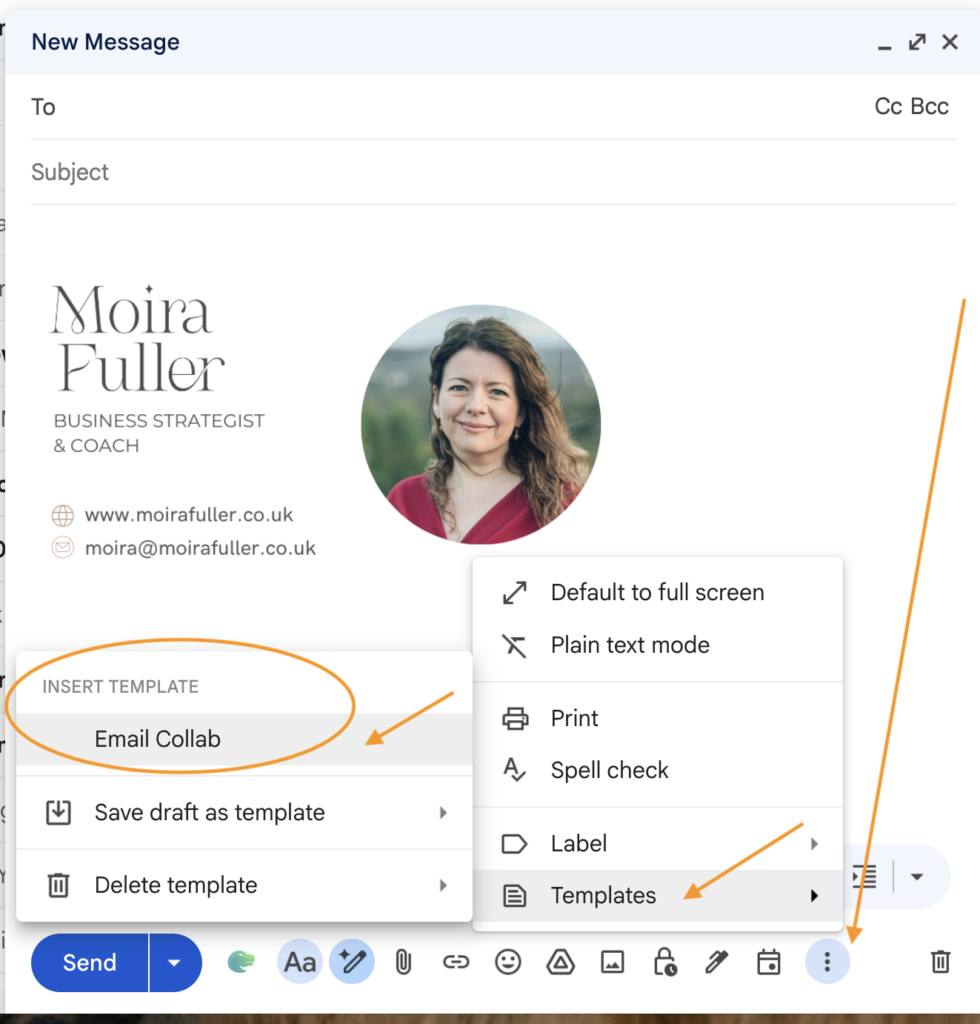
GMAIL TEMPLATE EMAILS HOW-TO
If you use Gmail, template emails are easy to set up. Here’s how:
- In Gmail, go to Settings, then See All Settings.
- Open the Advanced tab and Enable Templates.
- Now, open a new email and write the email you want to reuse, including the subject line (or copy / paste one you’ve used in the past, removing personal details like name).
* Top tip: don’t include your signature on the email, as this will be added (again) when you use the template.
- Then click the three dots in the draft.
- Choose Templates, then Save draft as template, then Save as new template. It will name it with your subject line.
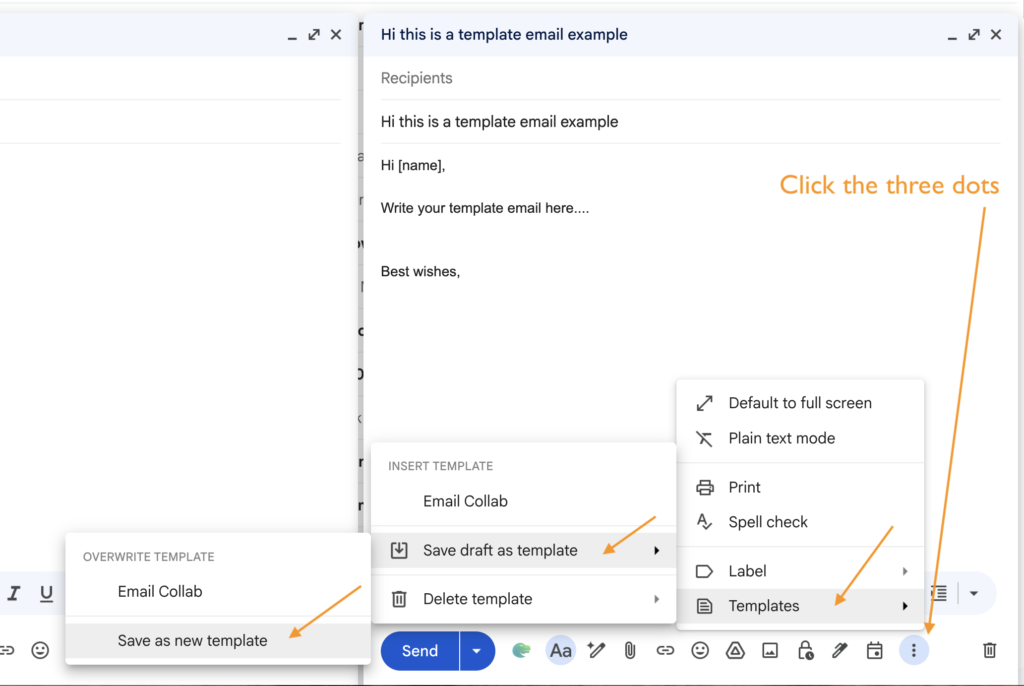
To use the template:
- Open a new email, click the 3 dots, then Templates, and choose the template you want to use.
next steps
You don’t need to automate everything this week.
Set aside 30 minutes – have a look in your sent folder, and start with the emails that happen often. Choose one, then automate it or template it.
LESS ADMIN, MORE CAPACITY
If you want to take this further, minimise bitty admin tasks and create more time & energy in your business, download my free Capacity Assessment.
It will help you find the 1-2 “release valves” that will make the biggest difference.